 kuizer
Desktop app
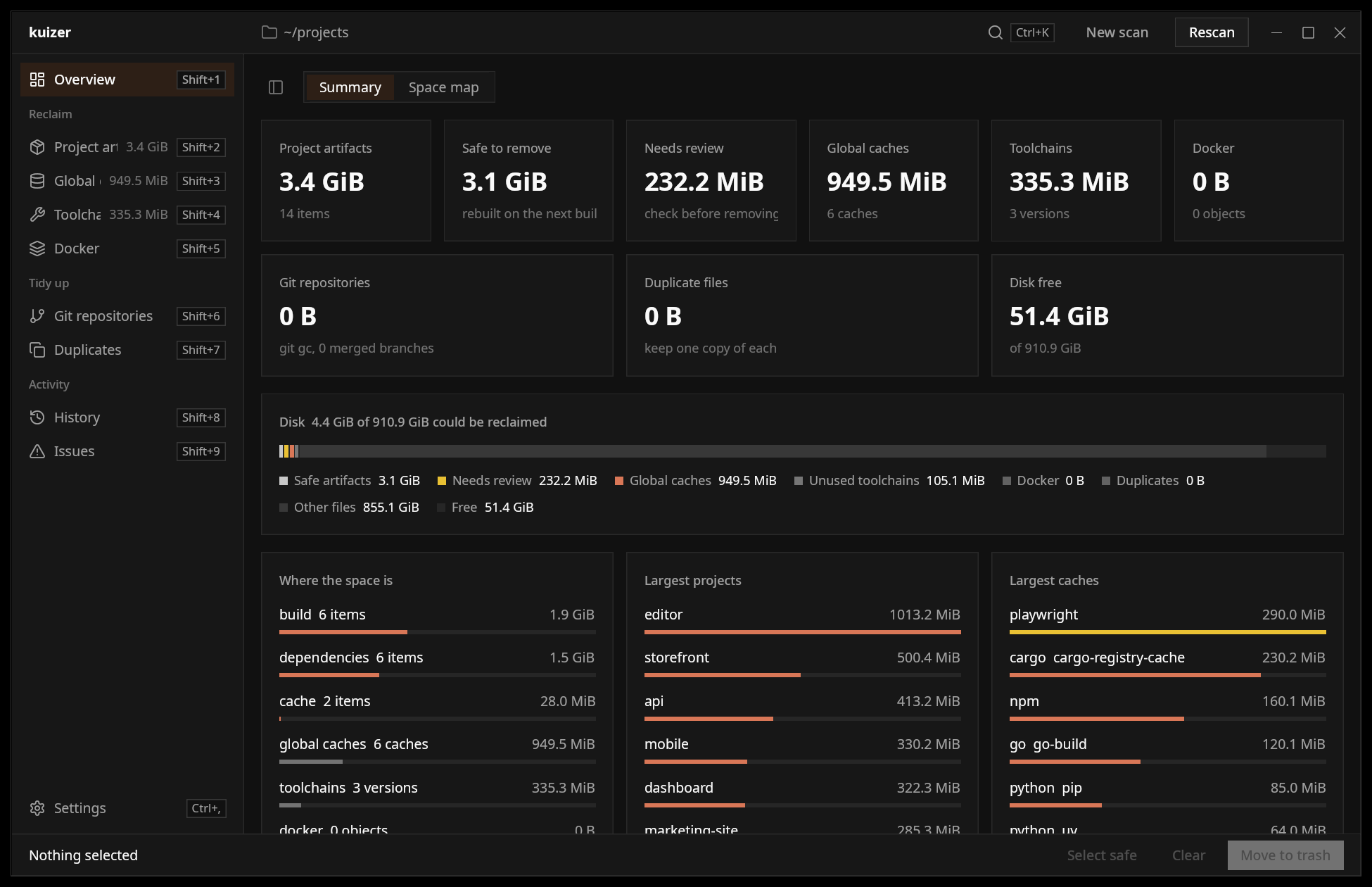
kuizer-gui is a desktop window for the same scan, with a command palette, a space map and keyboard control for every action.
kuizer-gui is a desktop window for the same scan, built on GPUI. It shows an overview, project artifacts, global caches, toolchains, Docker objects, git repositories, duplicates, history and scan issues. It deletes selected items with the same checks as kuizer clean.
The first form opens the start screen. The second skips it and scans the folder right away.
Start screen
Type a folder, pick one with the system folder dialog, reopen one of the last eight folders or choose a full scan of your home folder. The same screen sets the scan options: which kinds of artifacts to list, the smallest item size, how deep to walk, and whether to measure global caches, toolchains and Docker, search for duplicate files and stay on one file system. Escape cancels a running scan. New scan in the title bar goes back to the start screen.
Deleting
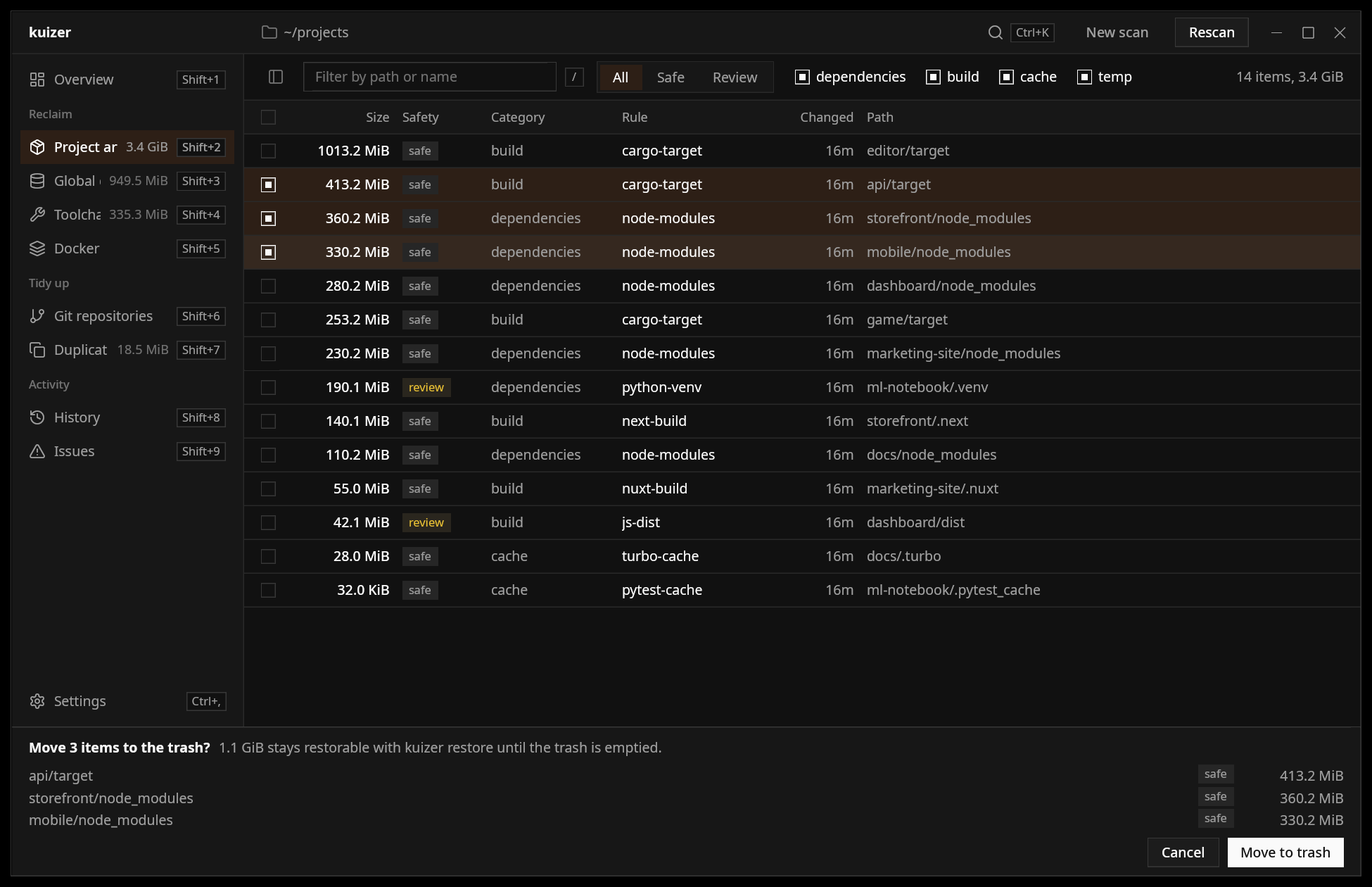
Deletion is permanent by default. The "Move to the trash" switch under Settings > Deleting writes delete.mode = "trash" to the config file; project artifacts and global caches then move to the trash, while toolchains, Docker objects and git branches are still removed for good. While anything is selected, a bar above the status bar sums up the selection: the item count, the total size, how many items are review, and whether they are deleted for good or moved to the trash. Its Delete button, enter, delete and d remove the selection at once, without a confirmation. Holding the key down never deletes. The History section has a Restore button for runs that still sit in the trash.
Keyboard
Everything works from the keyboard. Ctrl+K (Cmd+K on macOS) opens a command palette with every action, section and recent folder, and ? lists all shortcuts.
| Keys | Action |
|---|---|
j k or the arrow keys | Move the cursor row |
space | Select the item |
enter delete d | Delete the selection, or the cursor item |
o | Reveal the item in the file manager |
y | Copy the item's path |
/ | Filter the list by path or name |
Shift+1 to Shift+9 | Switch sections |
Ctrl+B (Cmd+B) | Collapse or expand the sidebar |
Ctrl+, (Cmd+,) | Open the settings popover |
m | Open the space map from any section |
Right-click an item, or press the Menu key or Shift+F10, to reveal it, copy its path, select it, delete only that item or exclude it from every later scan, which adds it to scan.exclude in the config file.
Space map
The Overview has a space map: every reclaimable item as a tile sized by the space it takes, inside the folders that hold it. Global caches form a group of their own. Click a folder tile or press enter to zoom in, and use the breadcrumb, Backspace or Escape to zoom out. The arrow keys move between tiles and space selects an item.
Git repositories
The Git repositories section lists every repository under the scanned folders where git gc would free at least git.min_gain, with the expected gain up front, and the local branches already merged into its default branch. c packs one repository and Shift+C packs all of them. b and Shift+B delete merged branches, after a confirmation.
Settings
The settings popover and the config file hold the same values. Motion, the sidebar and the section shortcuts are under appearance and route_shortcuts.